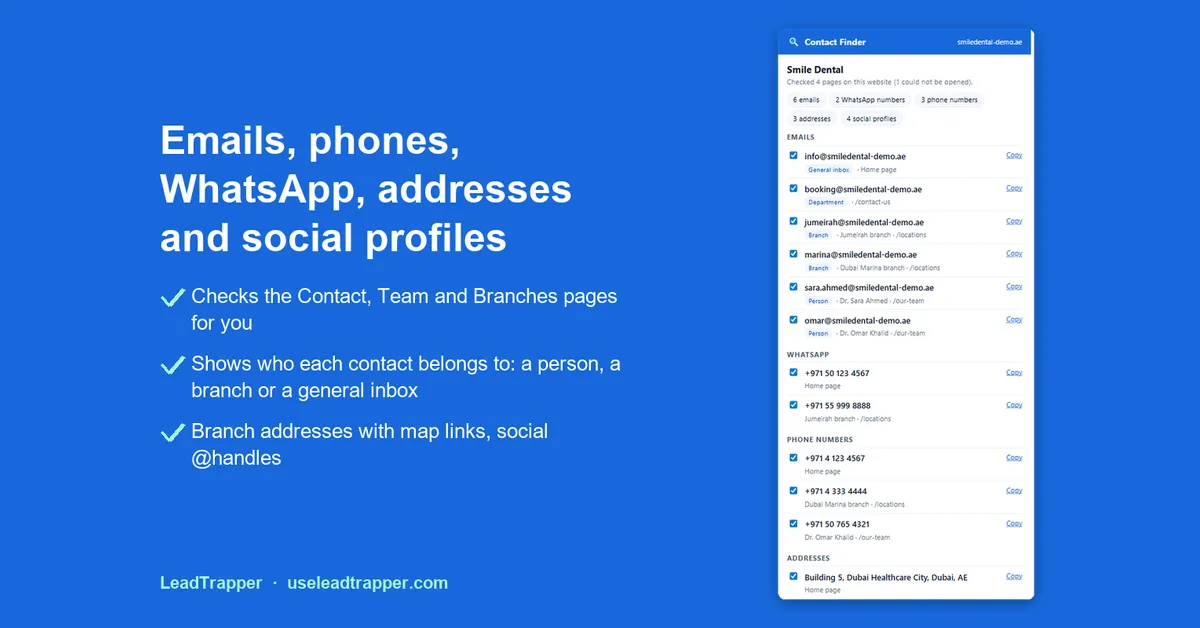
Contact Finder by LeadTrapper is a free Chrome extension that extracts the emails, phones, WhatsApp numbers, addresses and social profiles published on business websites. It reads the site you are on, a list of websites you paste or your open tabs, checks whether each email can receive mail, and exports to Excel or CSV. No account needed.
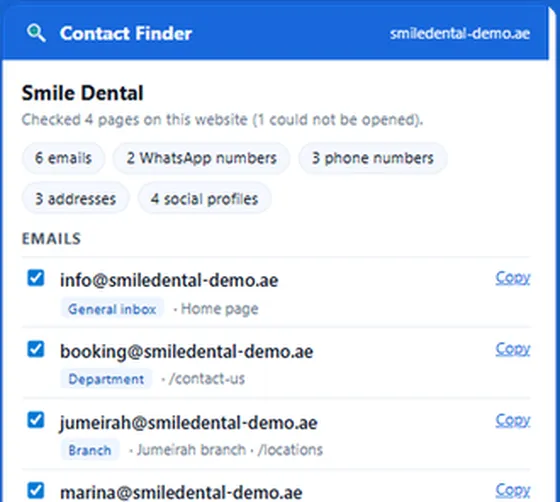

Extract the emails, phones, WhatsApp numbers, addresses and social profiles published on one business website or a whole list of them, and download them to Excel.
- Emails, phones, WhatsApp, addresses and social profiles
- Scan one site, a pasted list of websites or your open tabs
- Email check, Excel or CSV download; nothing is sent to us
- Contact Finder by LeadTrapper is a free Chrome extension. On a business website it lists the emails, phone numbers, WhatsApp numbers, addresses and social profiles the site publishes, and it also checks the site's Contact, Team, About and Branches pages.
- On 13 October 2026 we ran it on five clinic websites in Dubai. Four returned contact details, 31 in all, and one returned nothing from its home page.
- Each contact is labelled with where it came from, such as a branch, a person or a general inbox, and you can collect contacts from many websites into one Excel or CSV file.
- Since version 1.1.0, released on 21 October 2026, it also scans a list of websites you paste or every website open in your tabs, with no limit on the number of websites, and checks whether each email's domain can receive mail.
- It reads websites only when you ask, and refuses search engines and social networks.
- Nothing you find leaves your computer, and there is no account or sign-up.
Contact Finder by LeadTrapper is a free Chrome extension that extracts the contact details a business publishes on its own website: email addresses, phone numbers, WhatsApp numbers, addresses and social media profiles. Open the site, click the icon, and it lists what it found, checking the site’s Contact, Team and Branches pages for you. Since version 1.1.0 it can also scan a whole list of websites, or all your open tabs, in one go. You can then download everything to Excel or CSV.
What Contact Finder Extracts
When you click the icon on a business website, Contact Finder reads that site and a few of its own pages where contact details usually sit, such as Contact, Team, About and Branches. It then lists five kinds of contact:
- Emails, including addresses a site hides from simple copy-paste.
- Phone numbers, in international format, with the country worked out from the website.
- WhatsApp numbers, taken from chat buttons and WhatsApp links.
- Addresses of offices and branches, each with a map link.
- Social media profiles, with their handles.
When a site publishes no email, the page with its contact form is saved instead, so you still have a way to reach the business. Each website is also tagged with the system it is built on when Contact Finder can tell, such as Shopify, WooCommerce, Wix, Squarespace or WordPress.
It also leaves out what is not a contact: no-reply addresses, image file names, dates, fax numbers and share buttons.
How to Use It
Install Contact Finder from the Chrome Web Store and pin it to the toolbar: click the puzzle icon at the top right of Chrome, then the pin next to Contact Finder.
- Open the website of a business, for example a clinic, a restaurant or a supplier.
- Click the Contact Finder icon. It shows how many pages of the site it checked and lists the contacts by type.
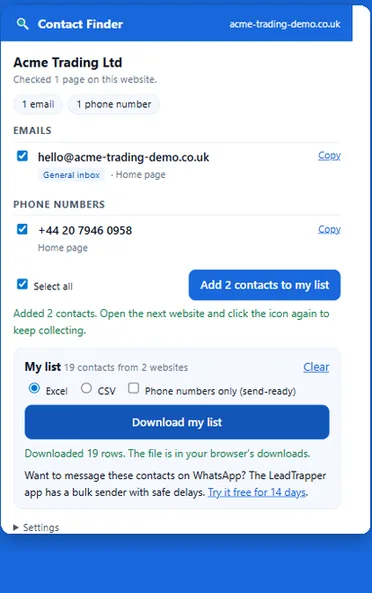
- Tick the contacts you want and press Add to my list.
- Open the next website and click the icon again. Your list keeps growing.
- Press Download my list and choose Excel or CSV.
What the video shows:
- 0:00 Emails and phones from 100 businesses
- 0:07 Install Contact Finder and click the icon
- 0:15 Emails, phones, WhatsApp, addresses, social profiles
- 0:25 Company, branch or team member
- 0:32 Scan unlimited websites in bulk
- 0:41 Check emails before you write
- 0:48 Track replies + WhatsApp first message
- 0:56 Download Excel, CSV or phone contacts
- 1:04 Message them with the LeadTrapper app
- 1:15 Get Contact Finder
Video transcript
Need the email and phone number of a hundred businesses? Here's how to get them in minutes. Install Contact Finder from the Chrome Web Store. Open any business website and click the icon. It lists every email, phone, WhatsApp number, address and social profile, and checks the Contact, Team and Branch pages for you. Each contact is labelled: the company's own, a branch, or a team member with their name. Got a list of websites? Open the full list, paste as many as you want, and press Scan. Or scan all your open tabs. Check emails flags typing mistakes, throwaway inboxes and domains that will bounce. Mark who you contacted and who replied, and write one WhatsApp message with each name filled in. Download Excel, CSV, phone numbers only, or a contacts file for your phone. Ready to message them? The LeadTrapper app for Windows finds businesses on Google Maps, checks which numbers have WhatsApp, and sends with safe delays. Contact Finder: no limits, no sign-up. Find it on the Chrome Web Store, or search useleadtrapper.com.
Scan a List of Websites in Bulk
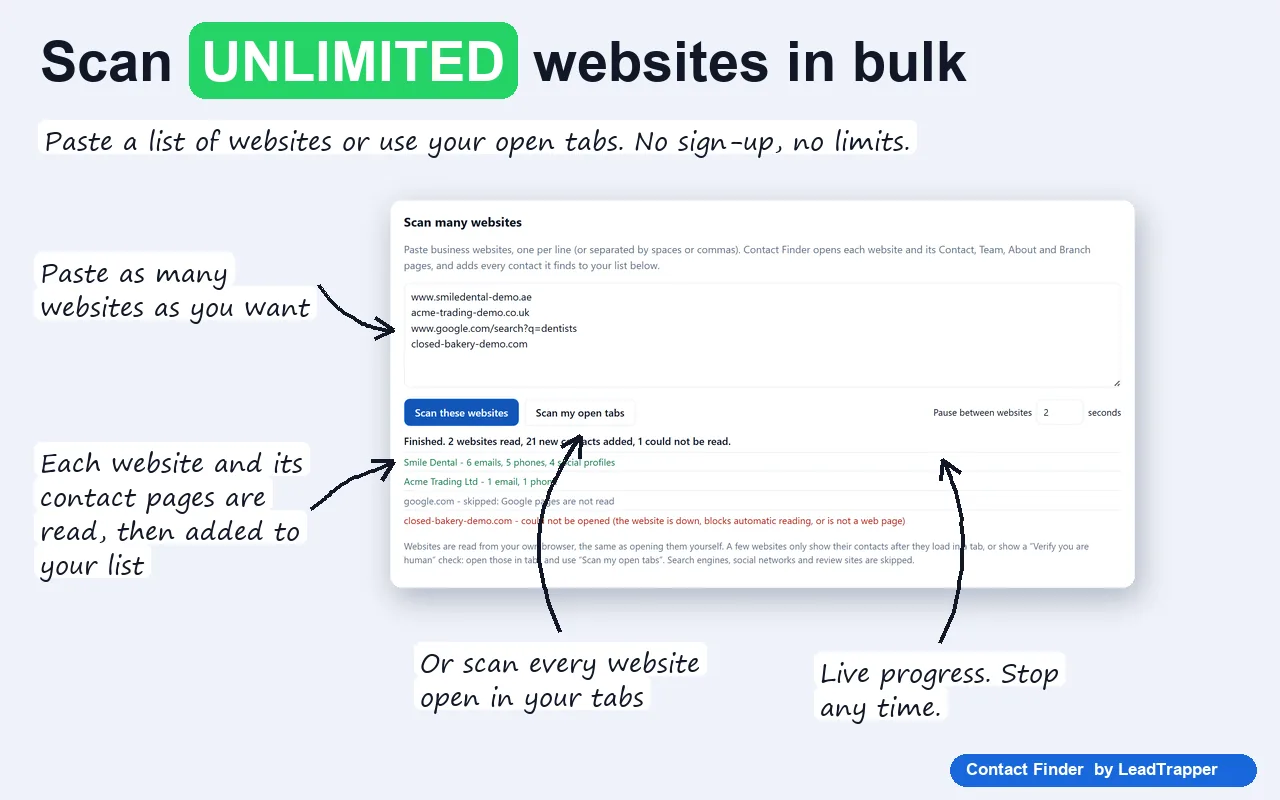
Version 1.1.0, released on 21 October 2026, added a full-page list where you can scan many websites at once. Open it from the popup with Open full list · scan many websites.
- Paste the websites, one per line or separated by spaces or commas.
- Press Scan these websites. The first time, Chrome asks your permission to read the websites; choose Allow.
- Contact Finder opens each website and its Contact, Team, About and Branches pages, one after another, and adds every contact to your list. It shows live progress, and Stop ends the scan at any time.
Or press Scan my open tabs to read every website open in your browser. This helps with sites that show their contacts only after they load in a tab, or that ask you to prove you are human.
There is no limit on the number of websites, contacts or downloads. Websites are read one at a time with a pause between them, 2 seconds by default and adjustable up to 60, so a long list takes a while. Search engines, social networks and review sites in your list are skipped, and a website that cannot be opened is listed with the reason.
What We Found in a Real Test
On 13 October 2026 we ran Contact Finder on the websites of five dental and aesthetic clinics in Dubai, chosen from a Google Maps search. We clicked the icon once on each home page and recorded what it listed. We are not naming the clinics or repeating their details here.
| Website | Pages checked | Emails | Phones | Addresses | Social profiles | |
|---|---|---|---|---|---|---|
| Clinic 1 | 2 | 0 | 1 | 2 | 2 | 4 |
| Clinic 2 | 7 | 1 | 1 | 0 | 1 | 3 |
| Clinic 3 | 4 | 0 | 1 | 1 | 1 | 4 |
| Clinic 4 | 3 | 1 | 0 | 1 | 2 | 5 |
| Clinic 5 | 1 | 0 | 0 | 0 | 0 | 0 |
Four of the five sites returned contact details, 31 in all. Clinic 1 lists two branches, and Contact Finder gave each phone number and address the name of its branch. Social profiles were the most common find and emails the rarest. That matches our Google Maps scans, where only 15% to 47% of businesses had an email on their website.
Clinic 5 returned nothing: Contact Finder checked one page and found no contact details in it. In that case the popup suggests opening the site’s Contact page and trying again, which is the right next step. This was five websites in one city on one day, so it shows what to expect, not a success rate.
Who Each Contact Belongs To
Business websites often list several addresses: a general inbox, a booking desk, team members and branches. Contact Finder labels each contact as a general inbox, a department, a person (with their name when the page shows it) or a branch (with the branch name), and shows which page it came from. Phone numbers and social profiles are labelled too: the company’s own, or a team member’s, with their name.
The label comes from the nearest heading or name on the page, so it is only as tidy as the website. In our test a few labels were the day of the week the clinic printed next to its number. Read the label as a hint about where the contact sits, and check the page when it matters.
Check Emails Before You Write
On the full list page, Check emails does two things:
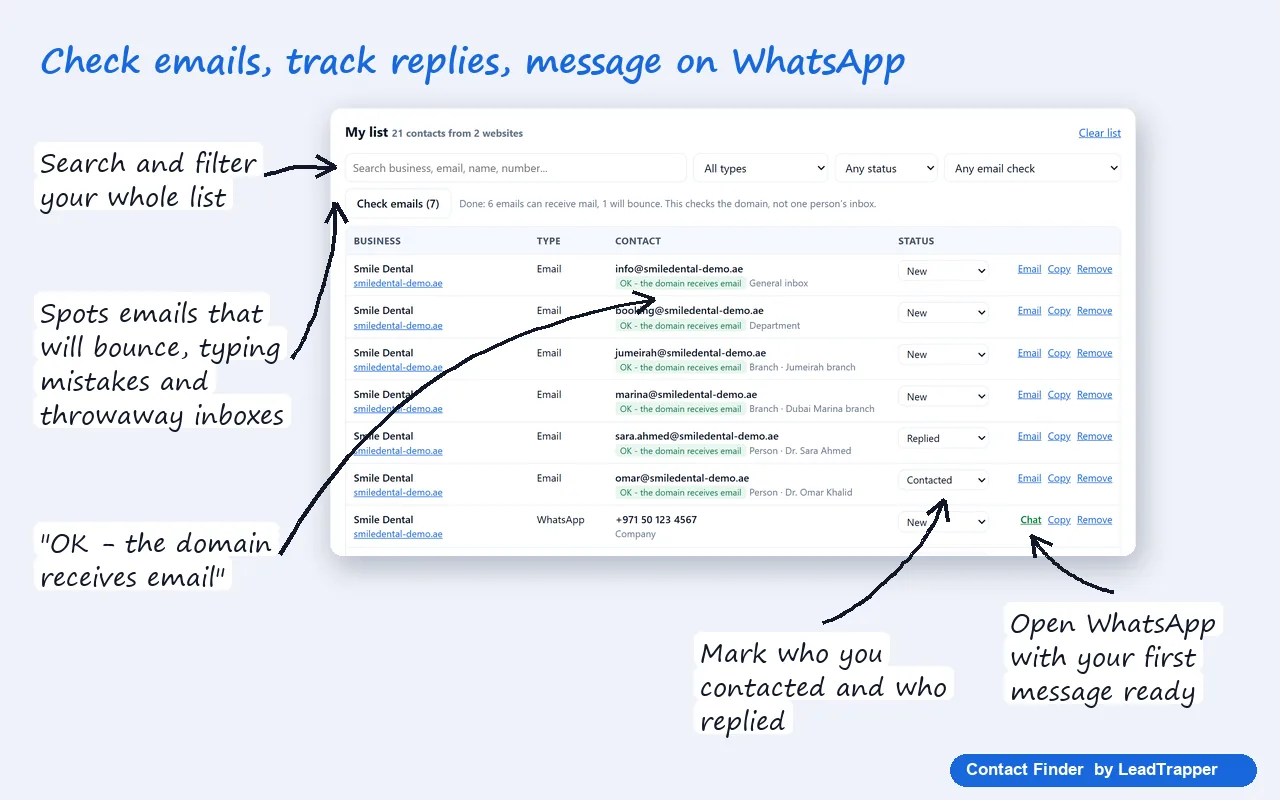
- It flags typing mistakes in common email providers, such as gmial.com, and suggests the likely address, and it flags temporary throwaway inboxes.
- It asks a public DNS service, Cloudflare’s 1.1.1.1, whether each email’s domain can receive mail at all. Only the domain name, such as acme.com, is sent, never the address.
You can then filter the list for emails that work or emails that will bounce. The check cannot prove that one person’s inbox exists; no tool running in a browser can. It catches the addresses that cannot work, before you write to them.
Organise and Follow Up
The full list page turns the contacts into a simple follow-up list:
- Search and filters by type (emails, phones and WhatsApp, addresses, social media, contact forms), by status and by email check.
- A status for each contact: New, Contacted, Replied, Not interested or Customer.
- The website platform, useful if you sell to businesses on one system, such as Shopify or WordPress stores.
- A WhatsApp first message, optional. Write it once with {{name}}, {{business}} or {{website}}, and it is added to every WhatsApp chat link with the details filled in. You still read it and press Send yourself in WhatsApp.
Export to Excel or CSV
Download my list saves every contact you added, from every website, in one file. You choose:
- Excel, which opens directly with each contact on its own row.
- CSV, for importing into a CRM or a spreadsheet tool.
- Phone numbers only (send-ready), a clean list of numbers for messaging.
- Phone contacts (.vcf), to import into your phone or Google Contacts, from the full list page.
- Copy for Google Sheets, which copies the table so you can paste it into a spreadsheet.
On the full list page, downloads include the rows your filters show, so you can export only the emails that work, for example. The list stays in your browser until you press Clear, so you can collect over several sessions.
What It Does Not Do
- It works on business websites only. It refuses search engines and social networks, such as Google, Google Maps, LinkedIn, Facebook, Instagram, TikTok and X.
- It reads websites only when you ask. Clicking the icon reads the site you are on, and a list or your open tabs is read only when you press Scan. Nothing runs in the background.
- It reads what the website publishes. If a site shows no email, there is no email to find, and it does not guess addresses.
- It runs in Chrome on a computer. Browser extensions cannot be installed on a phone.
Free Extension, Cloud Scraper or Desktop App?
Searches for a contact details scraper mostly turn up cloud services that crawl a list of websites for you and charge by usage, which suits developers and large one-off jobs. Contact Finder covers both everyday cases for free: checking businesses as you research them, and reading a list of websites you already have. The LeadTrapper Windows app adds finding the businesses and messaging them.
| Contact Finder (free extension) | LeadTrapper Windows app | |
|---|---|---|
| Emails, phones, WhatsApp, addresses, social profiles | Yes | Yes |
| Contact, team and branch pages | Yes | Yes |
| How many websites | The site you are on, a list you paste or your open tabs, with no limit | Up to 1,000 per run from a list, or businesses it finds by type and city |
| Find the businesses for you | No | Yes, from a business type and a city on Google Maps |
| Check numbers on WhatsApp | No | Yes, with the Number Filter |
| Send messages | No | Yes, with the bulk sender and safe delays |
| Price | Free | $50/year, 14-day free trial |
The app’s Email Finder, called Website Contact Finder under Google Maps in its left menu, uses the same rules as the extension. Give it your own list of websites, or a business type and a city, and it reads each site’s home page and its contact, team and branch pages. Our guide on how to find business email addresses covers the labels and the email check in detail.
Getting Contact Numbers for Marketing
Finding a number is the first step. Before you message anyone, two things decide whether it works. First, check which numbers are actually on WhatsApp, so you do not waste messages; the WhatsApp Number Filter guide shows how. Second, keep to WhatsApp’s rules on unsolicited messages, which the cold outreach policy guide explains.
If your leads come from Google Maps rather than websites, the free Maps Lead Extractor reads a results page, and the Google Maps scraper in the Windows app collects whole areas with phone numbers and websites. Use the contacts you collect lawfully and follow the anti-spam and privacy rules of the places you contact. WhatsApp is a trademark of WhatsApp LLC; Contact Finder is not affiliated with or endorsed by WhatsApp or Meta.
Frequently Asked Questions
Install a free browser extension such as Contact Finder by LeadTrapper, open the business website and click the extension icon. It lists the emails, phone numbers, WhatsApp numbers, addresses and social profiles the site publishes, including those on its contact, team and branch pages, and you can download them to Excel or CSV.
Yes. Tick the contacts you want, add them to your list, and press Download my list. You can choose Excel or CSV, or Phone numbers only for a list that is ready to send to. The full list page also saves a phone contacts file (.vcf) and copies the table for Google Sheets. The list keeps growing as you visit more websites until you clear it.
No. Contact Finder works on businesses' own websites and refuses search engines and social networks. To collect businesses from Google Maps, use the free Maps Lead Extractor or the LeadTrapper Windows app.
No. The extension reads websites in your browser when you ask it to, keeps your list on your own computer, and sends nothing to LeadTrapper or anyone else. The optional email check sends only domain names, such as acme.com, to a public DNS service, never the addresses. It needs no account.
It can only read contact details that are written in the website's pages. In our test, one of five sites returned nothing from its home page. Open the site's Contact page and click the icon again, or try another page of the site.
Yes, since version 1.1.0. Open the full list, paste the websites and press Scan these websites, or press Scan my open tabs. It reads each website and its contact pages one after another and adds the contacts to your list, with no limit on the number of websites. To find the businesses in the first place, from a business type and a city, use the LeadTrapper Windows app.
Partly. Check emails flags typing mistakes in common email providers and temporary throwaway inboxes, and asks a public DNS service whether each email's domain can receive mail at all. It cannot prove that one person's inbox exists; no tool running in a browser can.
About LeadTrapper
LeadTrapper is a Windows app for finding business leads and contacting them on WhatsApp. It collects business contacts from Google Maps, Instagram, Facebook, TikTok, LinkedIn and business websites, checks which numbers are on WhatsApp with its Number Filter, and sends personalised campaigns with automatic delays from one or more WhatsApp accounts. It also has a chatbot, a shared inbox for every account, and Store Orders for online shops. It installs from the Microsoft Store, and the full app is free for 14 days, then $50 a year. Free web tools, browser extensions and a Wix app are listed on the Free Tools page.
Find Contacts for a Whole List of Businesses
LeadTrapper for Windows finds businesses by type and city, reads each website for emails, phones and WhatsApp, and messages them with safe delays. $50/year, 14-day free trial.
Related Articles
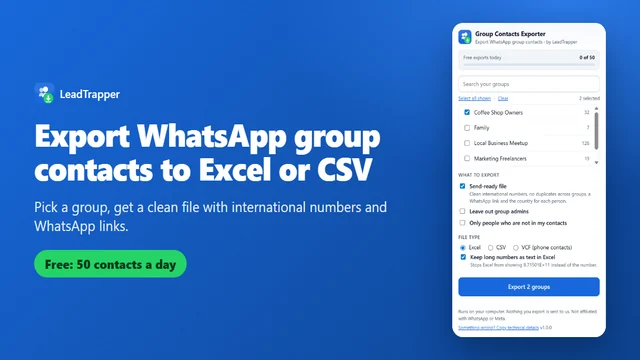
How to Export WhatsApp Group Contacts to Excel or CSV
Export WhatsApp group members to Excel, CSV or VCF with a free extension (50 contacts a day), or cop…
Read article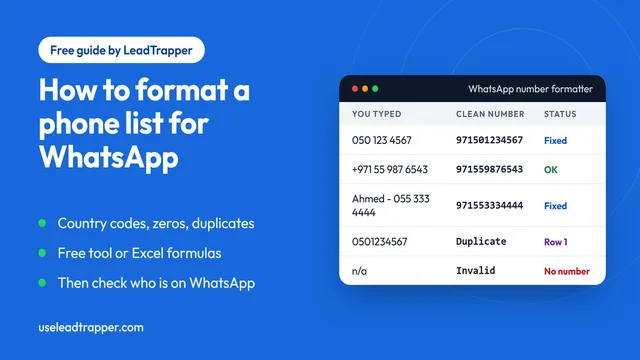
How to Format a Phone List for WhatsApp Bulk Sending
Format a phone list for WhatsApp bulk sending: fix country codes, leading zeros and duplicates in a…
Read articleEmail Finder for Business Websites
Every email, phone and WhatsApp number hundreds of websites publish, labelled and checked.
See the product