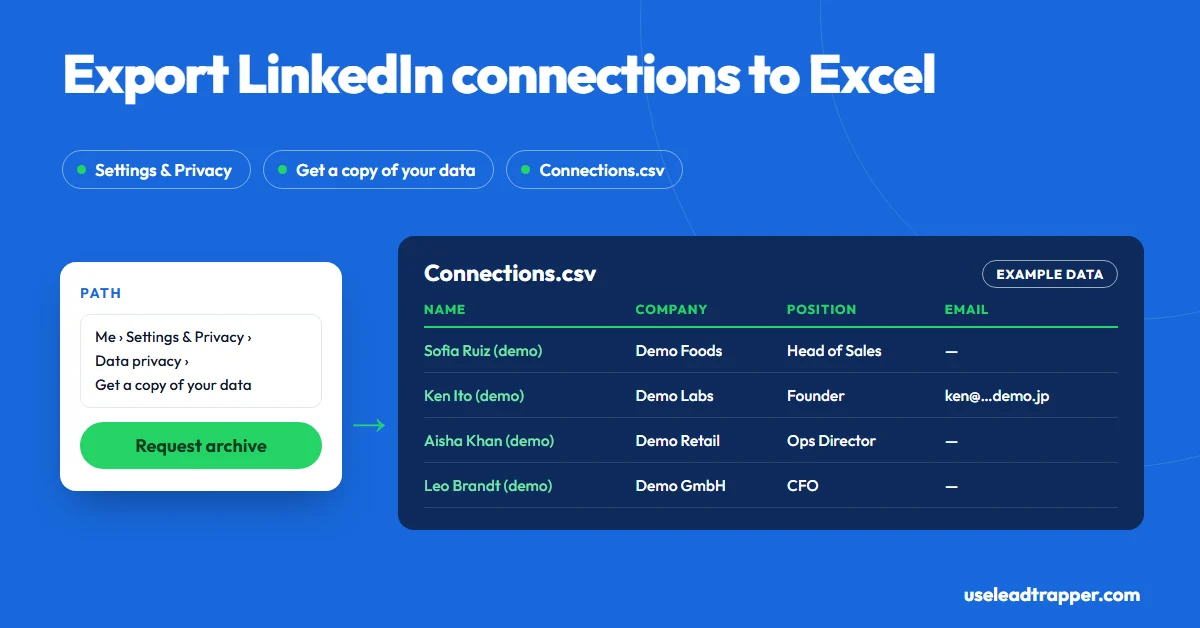
Go to Me, Settings & Privacy, Data privacy, then Get a copy of your data. Choose the archive that includes connections and request it. LinkedIn emails you a download link, and the file inside, Connections.csv, opens in Excel. It lists your 1st-degree connections; emails appear only for connections who allowed it.
- LinkedIn's own export is the permitted way to get your connections: Me, Settings & Privacy, Data privacy, Get a copy of your data.
- Connections.csv lists your 1st-degree connections only, typically with first and last name, profile URL, company, position and the date you connected.
- An email appears only for connections who allowed their connections to see or download it, so most rows usually have none.
- LinkedIn says CSV doesn't support all characters, so some names in scripts such as Chinese, Japanese or Hebrew don't come through. Open the file with Excel's import so other accented names keep their letters.
- For people beyond your connections, LeadTrapper's LinkedIn tools build a list from a role and a city through search engines; to reach anyone on either list, find their company's published email.
You can export your LinkedIn connections to Excel with LinkedIn’s own download. Go to Me, Settings & Privacy, Data privacy, then Get a copy of your data, and request the archive that includes connections. LinkedIn emails you a link, and the file inside, Connections.csv, opens in Excel. It’s free, it’s permitted, and it takes a few minutes of your time. This guide walks through it, explains why most emails are missing, and shows how to reach people the export can’t. For people outside your network, LeadTrapper’s LinkedIn scraper covers the gap.
Download Your Connections
These are the steps from LinkedIn’s help centre, on desktop:
- Click Me at the top of your LinkedIn homepage.
- Choose Settings & Privacy.
- Click Data privacy on the left.
- Under the section about how LinkedIn uses your data, click Get a copy of your data.
- Select the archive that includes connections, or tick Connections if you only want that.
- Click Request archive and enter your password if asked.
- Wait for LinkedIn’s email, then download the ZIP from the link in it while you’re signed in.
Users report the connections file arriving within minutes, and the full archive taking up to a day. Unzip the download and look for Connections.csv.
What Connections.csv Contains
The file has one row per 1st-degree connection. In recent exports the columns typically are:
| Column | What it holds |
|---|---|
| First Name, Last Name | As written on their profile |
| URL | The link to their LinkedIn profile |
| Email Address | Only if they allowed it, usually empty |
| Company | Their current employer, as on their profile |
| Position | Their current title |
| Connected On | The date you connected |
The first rows of the file can be a short note from LinkedIn rather than data. If Excel shows text in the first few lines, delete those rows so the column names sit in row 1.
Why Most Emails Are Missing
LinkedIn includes a connection’s email in your export only if that person allowed their connections to see or download it. Many people never turn that on, so in most exports the email column is mostly empty. That’s by design: each member decides who gets their address.
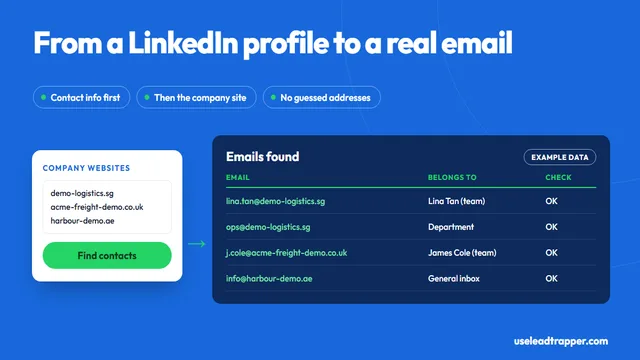
You may still see some emails on individual profiles under Contact info, because seeing an email and downloading it are separate settings. For the rest, the company route works: take the Company column, find each company’s website, and look for the person’s published address. Our guide to finding an email from a LinkedIn profile covers it, and LeadTrapper’s Email Finder reads up to 1,000 company websites per run and labels each email by person, department, branch or general inbox.
Opening It in Excel Without Broken Names
Double-clicking a CSV sometimes turns “José” or “Müller” into strange symbols, because Excel guesses the wrong character set. LinkedIn also says its CSV export doesn’t support every alphabet, so names in scripts such as Chinese, Japanese or Hebrew may not come through at all. For the rest, import instead of opening:
- Open a blank workbook in Excel.
- Go to Data, then From Text/CSV, and pick Connections.csv.
- Set File Origin to 65001: Unicode (UTF-8) and click Load.
Google Sheets reads the file correctly with File, Import, Upload.
Turning the Export Into a Useful List
A raw export is a list of everyone you ever accepted. A few minutes of sorting makes it a prospect list:
- Filter by Position for the roles you sell to.
- Filter by Company to group people at the same account.
- Sort by Connected On to find recent connections, who remember you best.
- Add a Status column: contacted, replied, not now.
For connections whose role changed since you connected, LeadTrapper’s Profile Scraper reads profile links you paste, one per line, and returns each profile’s current name, headline and location. Paste the URL column in and you have up-to-date titles.
People Beyond Your Connections
The export stops at your network. To list the people you don’t know yet, you have two routes:
| Approach | Who you get | Cost | Notes |
|---|---|---|---|
| LinkedIn’s export | Your 1st-degree connections | Free | Permitted; emails only where allowed |
| Sales Navigator | Other members, through LinkedIn’s advanced search | Core plan listed at $119.99 a month (checked 23 September 2026) | Permitted, inside LinkedIn |
| LeadTrapper Profile Search | Profiles matching a role and city, found through Bing, Yahoo and DuckDuckGo | $50/year, all features | Name, headline, location and link; no emails; against LinkedIn’s terms |
LeadTrapper’s Profile Search builds a search such as site:linkedin.com/in "Head of Procurement" Riyadh, collects the profile links search engines return, and reads each profile into a list you export as CSV. Searching through search engines means the discovery step doesn’t use your LinkedIn account. Reading the profile pages is still collecting LinkedIn data with software, which LinkedIn’s terms forbid, as does LinkedIn allow scraping explains. The search method itself is in our LinkedIn X-ray search guide, and the tool in our LinkedIn profile scraper guide. This isn’t legal advice.
Frequently Asked Questions
Click Me at the top of LinkedIn, then Settings & Privacy, then Data privacy, and choose Get a copy of your data. Select the archive that includes connections and click Request archive. LinkedIn emails a download link to your primary address. The ZIP contains Connections.csv.
Only for connections who allowed it. LinkedIn includes a connection's email in your export only if that person turned on the setting that lets connections see or download their email. For everyone else the email column is empty.
LinkedIn emails you a link when the file is ready. Users report minutes for smaller downloads and up to a day for the full archive. You can only download it from the link in that email, while you're signed in.
No. Connections.csv doesn't include phone numbers. Phone numbers that connections share are visible on their Contact info, one profile at a time.
Not through LinkedIn's export, which covers 1st-degree connections only. Sales Navigator, LinkedIn's paid tool, lets you build lead lists of other members. LeadTrapper's LinkedIn tools find profiles by role and city through Bing, Yahoo and DuckDuckGo and export name, headline and location, never emails.
About LeadTrapper
LeadTrapper is a Windows app for finding business leads and contacting them on WhatsApp. It collects business contacts from Google Maps, Instagram, Facebook, TikTok, LinkedIn and business websites, checks which numbers are on WhatsApp with its Number Filter, and sends personalised campaigns with automatic delays from one or more WhatsApp accounts. It also has a chatbot, a shared inbox for every account, and Store Orders for online shops. It installs from the Microsoft Store, and the full app is free for 14 days, then $50 a year. Free web tools, browser extensions and a Wix app are listed on the Free Tools page.
Build the List Your Connections Can't Give You
LinkedIn tools, the Email Finder, the Google Maps scraper and the WhatsApp sender all come with LeadTrapper. $50/year — all features included.
Related Articles
How to Find an Email From a LinkedIn Profile
Find an email from a LinkedIn profile: what Contact info shows, why LinkedIn won't give strangers an…
Read article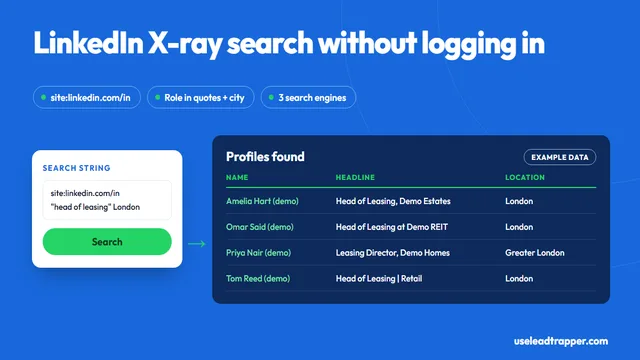
LinkedIn X-Ray Search: Find Profiles via Google
LinkedIn X-ray search explained: copy-ready search strings for Google and Bing, the operators that m…
Read articleLinkedIn Scraper for Prospect Lists
Profiles by keyword, job title and city, with name, headline and location.
See the product